> ## Documentation Index
> Fetch the complete documentation index at: https://docs.mythex.ai/llms.txt
> Use this file to discover all available pages before exploring further.
# Notifications
> Get told when a build finishes, even when Mythex isn't open — in your browser or on your phone.
# Notifications
A build can take a few minutes, and there is no reason to sit and watch it.
Turn notifications on and Mythex tells you when the agent has finished, with
what it did — not a generic "your build finished", but a line from the turn
itself.
 ## Turning them on
Open **[Account settings](https://mythex.ai/settings)** → **Notifications** and
click **Turn on**. Your browser asks for permission; allow it once and the row
reads **On**.
You can also turn them on from the card that appears in the chat after you send
a message. It offers once, and remembers if you dismiss it.
## What you get told
One notification per finished turn, for the project it belongs to. Clicking it
opens that project — if Mythex is already open in a tab, that tab comes forward
rather than a second one opening.
If a second turn finishes on the same project before you have read the first,
the newer one replaces it instead of stacking up.
## When you won't be told
**While you are already looking at that project.** If the tab is open, in front
of you, and on the project the notification is about, Mythex stays quiet — you
can see the reply arrive, and a system notification about it would only be in
the way.
You still get told when:
* the tab is in the background, or the window is behind something else
* you are on a different project, or anywhere else in Mythex
* the browser is minimised, or Mythex is closed entirely
## Turning them off
Two ways, and they are not the same:
* **In Mythex** — Account settings → Notifications. This stops this browser
from receiving them.
* **In your browser** — the padlock in the address bar → Notifications. This
revokes permission, and only the browser can give it back.
## Turning them on
Open **[Account settings](https://mythex.ai/settings)** → **Notifications** and
click **Turn on**. Your browser asks for permission; allow it once and the row
reads **On**.
You can also turn them on from the card that appears in the chat after you send
a message. It offers once, and remembers if you dismiss it.
## What you get told
One notification per finished turn, for the project it belongs to. Clicking it
opens that project — if Mythex is already open in a tab, that tab comes forward
rather than a second one opening.
If a second turn finishes on the same project before you have read the first,
the newer one replaces it instead of stacking up.
## When you won't be told
**While you are already looking at that project.** If the tab is open, in front
of you, and on the project the notification is about, Mythex stays quiet — you
can see the reply arrive, and a system notification about it would only be in
the way.
You still get told when:
* the tab is in the background, or the window is behind something else
* you are on a different project, or anywhere else in Mythex
* the browser is minimised, or Mythex is closed entirely
## Turning them off
Two ways, and they are not the same:
* **In Mythex** — Account settings → Notifications. This stops this browser
from receiving them.
* **In your browser** — the padlock in the address bar → Notifications. This
revokes permission, and only the browser can give it back.
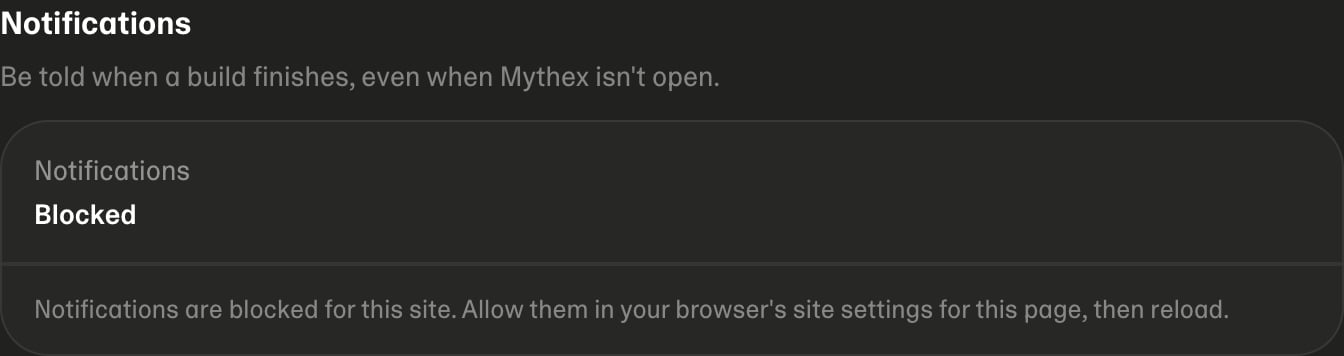 **Blocked** means permission was declined in the browser at some point. No
website can reopen its own permission settings, so Mythex cannot offer a
button for it — allow notifications for this site in your browser's settings,
then reload the page.
## On your phone
Signing in on another device registers that device too, so a build you started
on your laptop can reach you on your phone. Signing out of a device stops it
receiving them.
## Related
* [Account settings](/account/settings)
* [Chat](/features/chat)
**Blocked** means permission was declined in the browser at some point. No
website can reopen its own permission settings, so Mythex cannot offer a
button for it — allow notifications for this site in your browser's settings,
then reload the page.
## On your phone
Signing in on another device registers that device too, so a build you started
on your laptop can reach you on your phone. Signing out of a device stops it
receiving them.
## Related
* [Account settings](/account/settings)
* [Chat](/features/chat)