> ## Documentation Index
> Fetch the complete documentation index at: https://docs.mythex.ai/llms.txt
> Use this file to discover all available pages before exploring further.
# Security
> Secure your Mythex account and workspace — two-factor sign-in with an authenticator app and recovery codes, verifying your company domain with a DNS record, single sign-on (SSO) with Google Workspace, and requiring either for a Business workspace.
# Security
| What | Where | Plan |
| - | - | - |
| Two-factor sign-in for your account | Your **avatar** → **Account settings** → **Security** → **Two-factor sign-in** | All |
| Verify your company domain (DNS TXT record) | Team → **Identity** → **Domain ownership** → **Verify** | Business and up |
| Turn on SSO with Google Workspace | Team → **Identity** → **Single sign-on (SSO)** → **Turn on** | Business and up |
| Require SSO | Team → **Identity** → **Require SSO for this workspace** | Business and up |
| Require two-factor sign-in for everyone | Team → **Privacy & security** → **Require two-factor sign-in** | Business and up |
Open the Team page from your **avatar** at the bottom of the sidebar → the top row (you and your workspace) → **Workspace settings**.
## Two-factor sign-in
Two-factor sign-in asks for a code from an authenticator app (Google Authenticator, 1Password, Authy and others) each time you sign in on a new session, after your password or Google sign-in. It is available on every plan.
### Turn it on
Your **avatar** at the bottom of the sidebar → **Account settings** (`/settings`). Under **Security**, find **Two-factor sign-in** and click **Set up**.
Scan it with your authenticator app. If you can't scan it, type the key shown under it into the app.
Enter the code the app shows to confirm.
Mythex shows **10 recovery codes**. Each works once, if you lose your phone. Copy them somewhere safe — they won't be shown again.
The row then reads **On**, and we email you that two-factor sign-in was turned on.
### Signing in
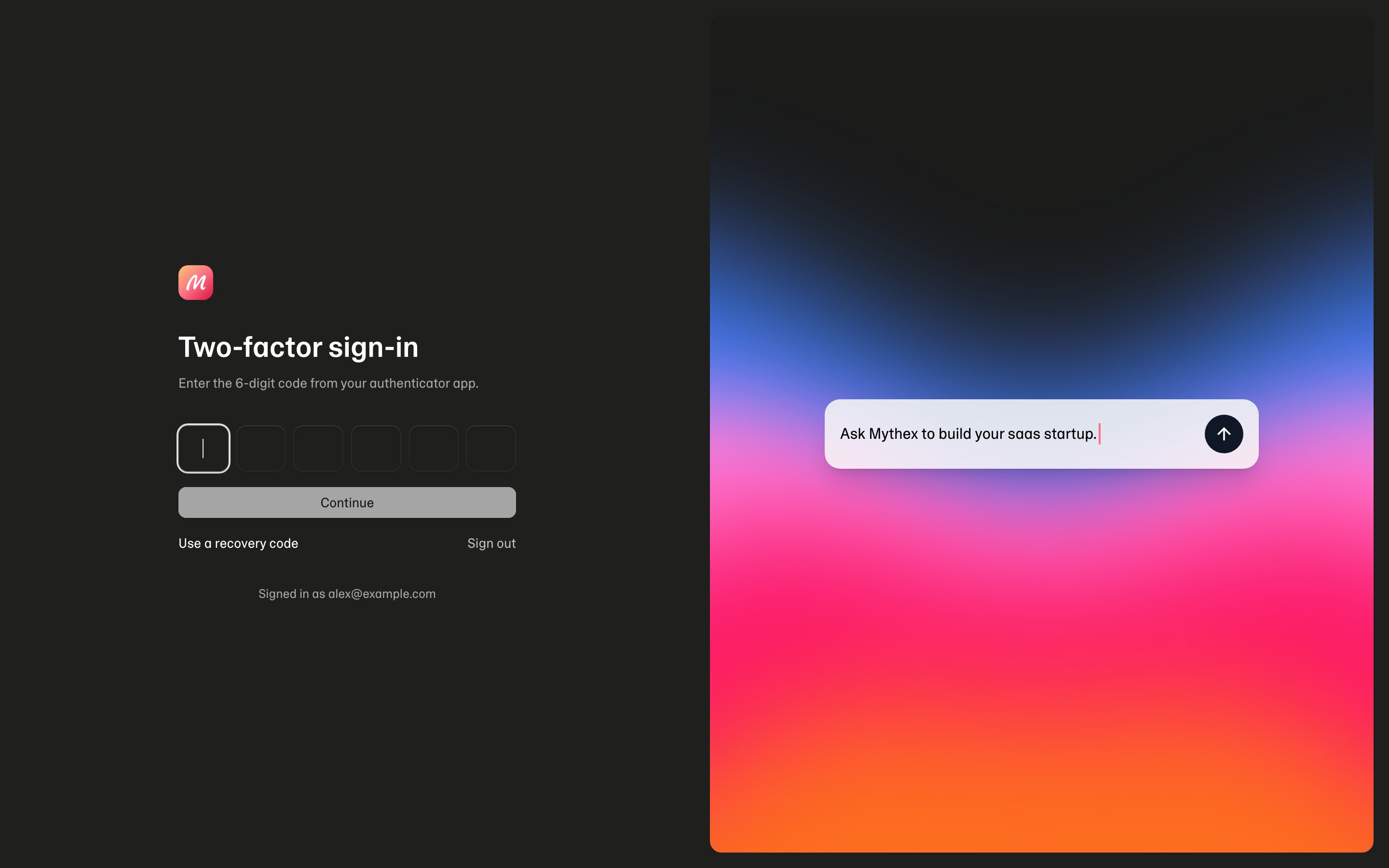 After you sign in, a **Two-factor sign-in** page asks for the **6-digit code** from your app before anything else opens. Type it into the six boxes (or paste it): it is checked as soon as the sixth digit is in, so you don't need to click **Continue**. No phone? Click **Use a recovery code** and enter one of yours (**Use your app instead** goes back). **Sign out** leaves without signing in. We email you when a recovery code is used, with how many you have left.
You get six tries every ten minutes. After that, wait a few minutes and try again.
### New recovery codes, or turn it off
Under **Two-factor sign-in** in Account settings:
* **New recovery codes** — enter a current code (or a recovery code) to get 10 new ones. The old ones stop working.
* **Turn off** — enter a current code or a recovery code. We email you that it was turned off.
If a workspace you're in requires two-factor sign-in, turning it off means that workspace won't open until you turn it back on.
## Single sign-on (SSO)
**Business** workspaces can let their members sign in with their company account.
* **Google Workspace** — available now. People at your company domain sign in with their Google Workspace account. There is nothing to set up in Google.
* **Okta, Microsoft Entra and other SAML providers** — not self-serve. They come with an Enterprise [custom contract](/billing/plans#custom-contracts). Use **Book a demo** on the Enterprise plan card, or contact [support@mythex.ai](mailto:support@mythex.ai). In the Identity tab this row reads **Coming soon**.
### Verify your company domain
SSO changes how everyone at your domain signs in to Mythex, so you first prove the domain is your company's by adding a DNS record. An email address at the domain isn't enough.
After you sign in, a **Two-factor sign-in** page asks for the **6-digit code** from your app before anything else opens. Type it into the six boxes (or paste it): it is checked as soon as the sixth digit is in, so you don't need to click **Continue**. No phone? Click **Use a recovery code** and enter one of yours (**Use your app instead** goes back). **Sign out** leaves without signing in. We email you when a recovery code is used, with how many you have left.
You get six tries every ten minutes. After that, wait a few minutes and try again.
### New recovery codes, or turn it off
Under **Two-factor sign-in** in Account settings:
* **New recovery codes** — enter a current code (or a recovery code) to get 10 new ones. The old ones stop working.
* **Turn off** — enter a current code or a recovery code. We email you that it was turned off.
If a workspace you're in requires two-factor sign-in, turning it off means that workspace won't open until you turn it back on.
## Single sign-on (SSO)
**Business** workspaces can let their members sign in with their company account.
* **Google Workspace** — available now. People at your company domain sign in with their Google Workspace account. There is nothing to set up in Google.
* **Okta, Microsoft Entra and other SAML providers** — not self-serve. They come with an Enterprise [custom contract](/billing/plans#custom-contracts). Use **Book a demo** on the Enterprise plan card, or contact [support@mythex.ai](mailto:support@mythex.ai). In the Identity tab this row reads **Coming soon**.
### Verify your company domain
SSO changes how everyone at your domain signs in to Mythex, so you first prove the domain is your company's by adding a DNS record. An email address at the domain isn't enough.
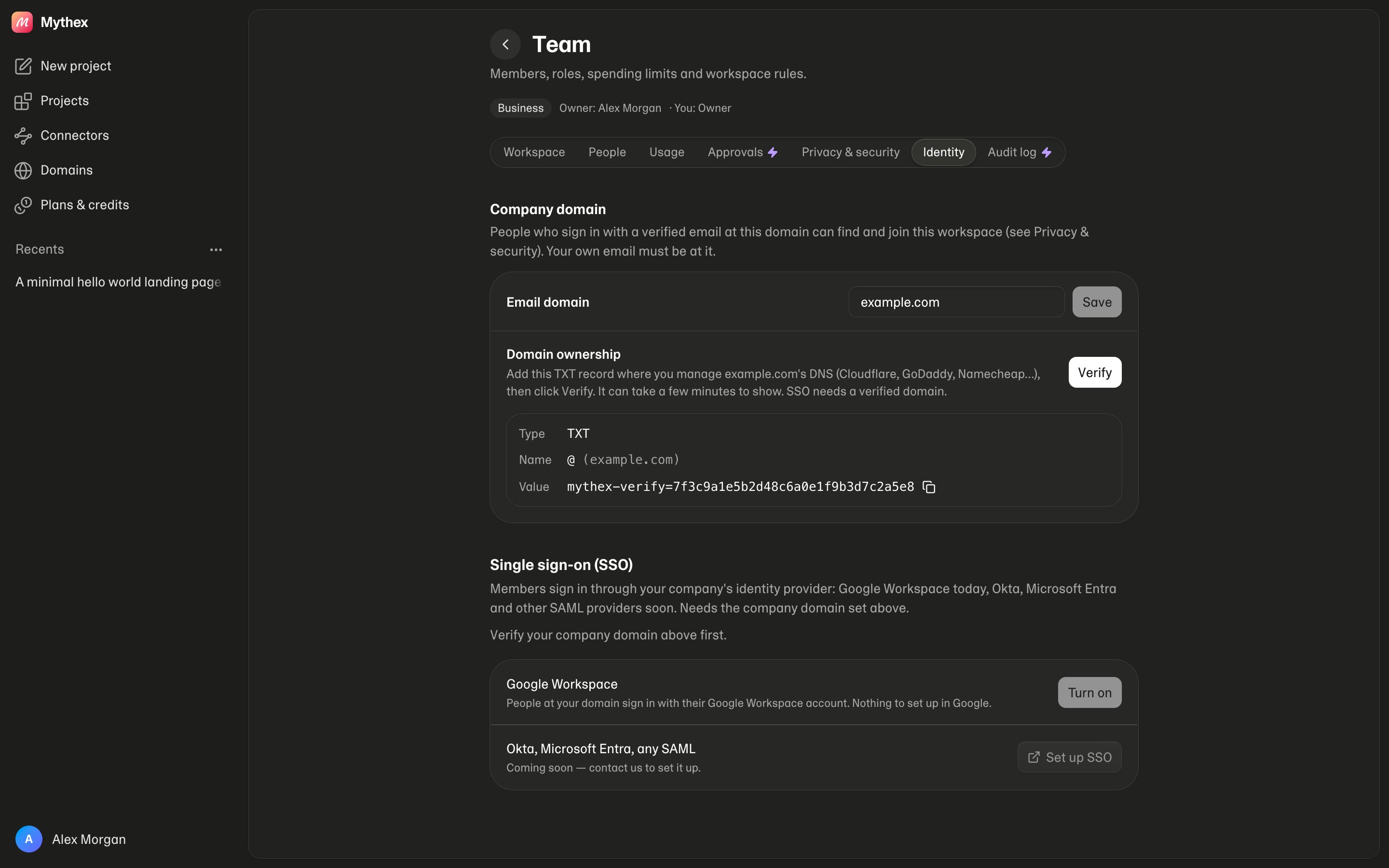 Team → **Identity** → **Company domain**: enter your company's email domain and **Save**. Your own verified email must be at that domain.
Under **Domain ownership**, Mythex shows a record. Add it where you manage the domain's DNS (Cloudflare, GoDaddy, Namecheap, Google Cloud DNS and others):
| Type | Name | Value |
| - | - | - |
| TXT | `@` (the domain itself) | `mythex-verify=…` — copy it from the Identity tab |
Adding a TXT record doesn't change your website or email. Leave any other TXT records (SPF, Google verification…) in place.
DNS changes usually show within a few minutes, sometimes up to an hour. If Mythex can't see the record yet, wait and click **Verify** again.
**Domain ownership** then reads **Verified**.
* A domain can be verified by only one workspace. If another workspace already verified it, ask your colleagues there, or [contact support](mailto:support@mythex.ai).
* Changing the company domain turns SSO off until the new domain is verified.
* Joining by email domain doesn't need verification — see [Joining by company email domain](/account/workspaces#joining-by-company-email-domain-business).
### Set up Google Workspace SSO (admins)
1. [Verify your company domain](#verify-your-company-domain).
2. Under **Single sign-on (SSO)**, click **Turn on** next to **Google Workspace**.
The **Turn on** button stays greyed out until the domain is verified. Once it's on, the row reads **On** for people at `@yourdomain`.
### Signing in with SSO
On the [sign-in page](https://mythex.ai/login), type your work email. When your company signs in with SSO, the password field disappears and the button becomes **Continue with SSO**. There is no separate SSO button — the email decides. While your company's sign-in page loads, the button shows a spinner.
From the **Log in** or **Get started** window on mythex.ai, typing a company email that uses SSO and clicking **Continue** takes you to the sign-in page, ready for **Continue with SSO**.
**Continue with Google** with your company Google Workspace account counts as signing in through SSO too.
Someone at your domain who signs in through SSO and isn't in the workspace yet joins it — as an **Editor**, or with the role of a pending invitation to that email.
### Require SSO
Once SSO is on, an admin can switch on **Require SSO for this workspace** (Team → **Identity**). Members who signed in another way are sent to sign in with SSO before the workspace opens.
It applies to members whose email is at your company's domain. People you invite from outside it (a contractor's personal email, say) can't sign in through your identity provider, so they keep signing in as they do now — if the workspace requires two-factor sign-in, they still need that. The workspace owner is never locked out by Require SSO, so they can always get back in to change it.
### Turn off SSO
Team → **Identity** → **Turn off SSO**. Members sign in with email or Google again, and SSO is no longer required.
## Require two-factor sign-in for a workspace (Business)
An admin can make two-factor sign-in mandatory for everyone in a Business workspace: Team → **Privacy & security** → **Require two-factor sign-in**. Turn it on for your own account first; Mythex won't let you lock yourself out.
Members without two-factor sign-in are sent to Account settings to set it up before the workspace opens.
## Related
* [Sign in](/account/sign-in)
* [Account settings](/account/settings)
* [Workspaces and teams](/account/workspaces)
* [Plans](/billing/plans)
This documentation is built and hosted on [Mintlify](https://mintlify.com), a developer documentation platform.
Team → **Identity** → **Company domain**: enter your company's email domain and **Save**. Your own verified email must be at that domain.
Under **Domain ownership**, Mythex shows a record. Add it where you manage the domain's DNS (Cloudflare, GoDaddy, Namecheap, Google Cloud DNS and others):
| Type | Name | Value |
| - | - | - |
| TXT | `@` (the domain itself) | `mythex-verify=…` — copy it from the Identity tab |
Adding a TXT record doesn't change your website or email. Leave any other TXT records (SPF, Google verification…) in place.
DNS changes usually show within a few minutes, sometimes up to an hour. If Mythex can't see the record yet, wait and click **Verify** again.
**Domain ownership** then reads **Verified**.
* A domain can be verified by only one workspace. If another workspace already verified it, ask your colleagues there, or [contact support](mailto:support@mythex.ai).
* Changing the company domain turns SSO off until the new domain is verified.
* Joining by email domain doesn't need verification — see [Joining by company email domain](/account/workspaces#joining-by-company-email-domain-business).
### Set up Google Workspace SSO (admins)
1. [Verify your company domain](#verify-your-company-domain).
2. Under **Single sign-on (SSO)**, click **Turn on** next to **Google Workspace**.
The **Turn on** button stays greyed out until the domain is verified. Once it's on, the row reads **On** for people at `@yourdomain`.
### Signing in with SSO
On the [sign-in page](https://mythex.ai/login), type your work email. When your company signs in with SSO, the password field disappears and the button becomes **Continue with SSO**. There is no separate SSO button — the email decides. While your company's sign-in page loads, the button shows a spinner.
From the **Log in** or **Get started** window on mythex.ai, typing a company email that uses SSO and clicking **Continue** takes you to the sign-in page, ready for **Continue with SSO**.
**Continue with Google** with your company Google Workspace account counts as signing in through SSO too.
Someone at your domain who signs in through SSO and isn't in the workspace yet joins it — as an **Editor**, or with the role of a pending invitation to that email.
### Require SSO
Once SSO is on, an admin can switch on **Require SSO for this workspace** (Team → **Identity**). Members who signed in another way are sent to sign in with SSO before the workspace opens.
It applies to members whose email is at your company's domain. People you invite from outside it (a contractor's personal email, say) can't sign in through your identity provider, so they keep signing in as they do now — if the workspace requires two-factor sign-in, they still need that. The workspace owner is never locked out by Require SSO, so they can always get back in to change it.
### Turn off SSO
Team → **Identity** → **Turn off SSO**. Members sign in with email or Google again, and SSO is no longer required.
## Require two-factor sign-in for a workspace (Business)
An admin can make two-factor sign-in mandatory for everyone in a Business workspace: Team → **Privacy & security** → **Require two-factor sign-in**. Turn it on for your own account first; Mythex won't let you lock yourself out.
Members without two-factor sign-in are sent to Account settings to set it up before the workspace opens.
## Related
* [Sign in](/account/sign-in)
* [Account settings](/account/settings)
* [Workspaces and teams](/account/workspaces)
* [Plans](/billing/plans)
This documentation is built and hosted on [Mintlify](https://mintlify.com), a developer documentation platform.