

Connectors
Connectors let Mythex act on the tools you already use. Connect an account once, then just ask in chat: “add each new signup as a row in my Leads sheet”, “post a message to #launches when someone publishes”.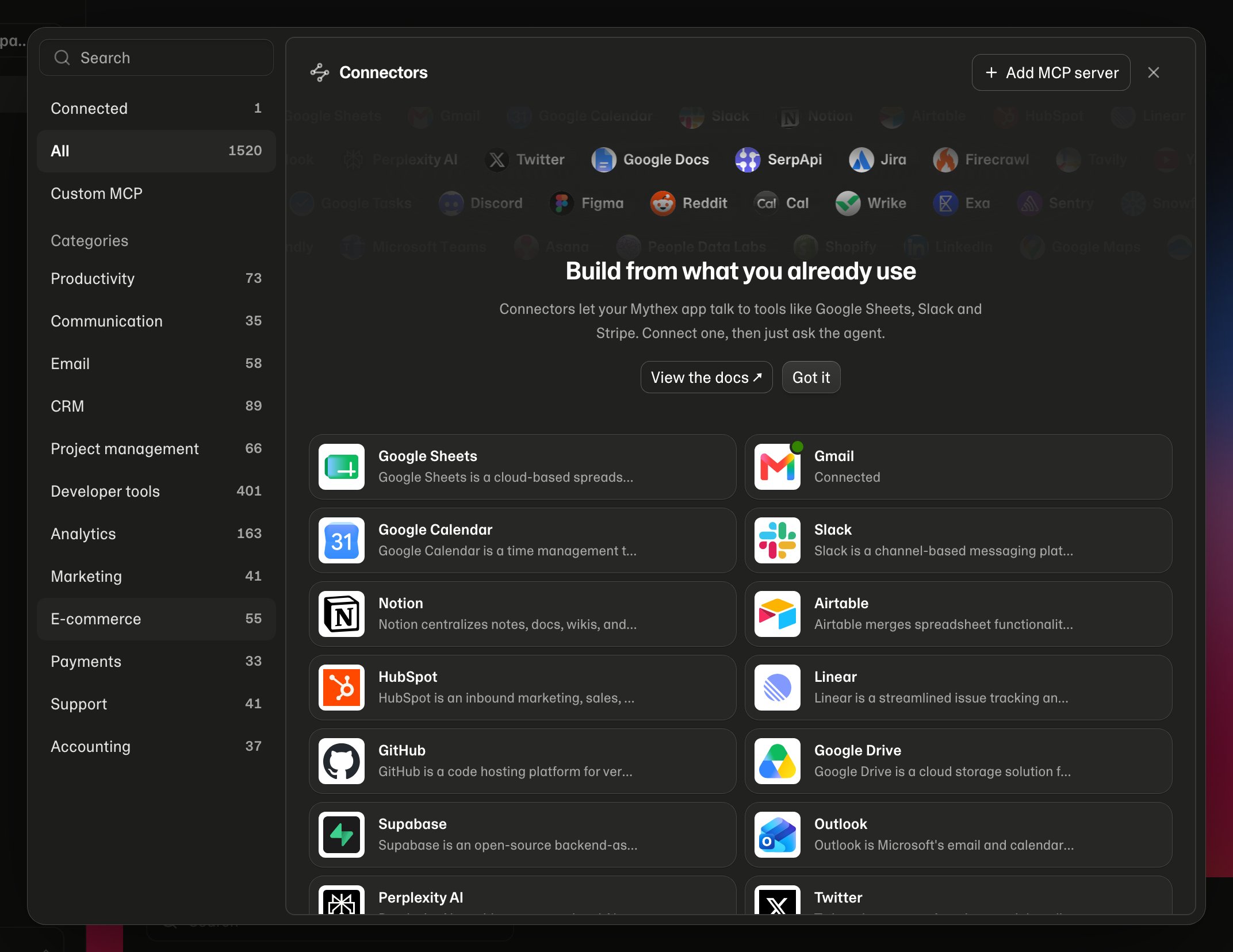
Connect an app
Where to find it
Connectors sits in the left sidebar, under Projects. It opens over whatever you were doing — the dashboard, or a project — so you never lose your place.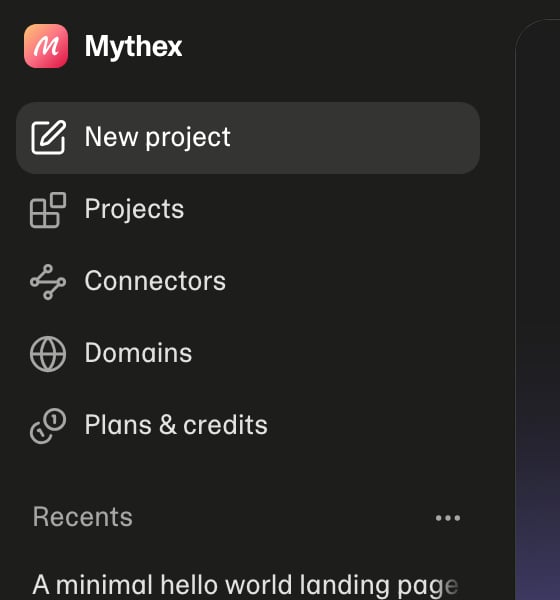
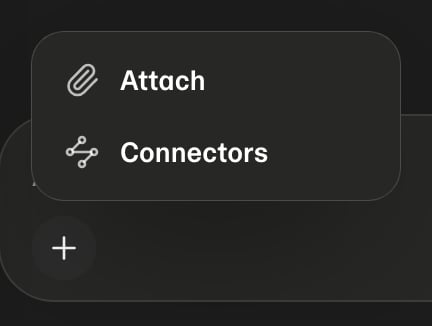
Connecting
- Open Connectors by either route above
- Find the app — search covers the whole catalogue, not just what is on screen
- Click Connect. The provider’s sign-in page opens in a new tab, so your project and any half-written message stay where they are
- Approve access there
- Come back to the Mythex tab. The app shows a green dot and reads Connected
Approve every permission the provider asks for. Google in particular splits access
per product — approving Gmail but not Drive leaves the connection half-working, and the
agent will report
ACCESS_TOKEN_SCOPE_INSUFFICIENT when it tries to use it.Use one in chat
Once an app is connected, ask for what you want in plain language: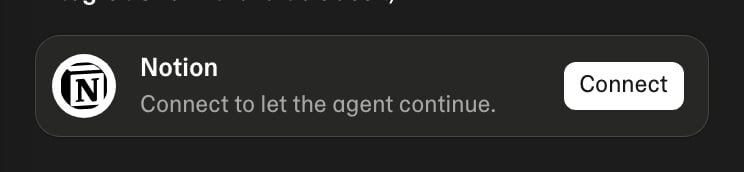
What the agent can do
In Ask and Plan mode the agent can only look — it can list your connections and
research what they could do, but it cannot run anything or start a connection. Planning
never sends an email.
Disconnect
Open Connectors, switch to Connected in the left rail, and hover the app you want to remove.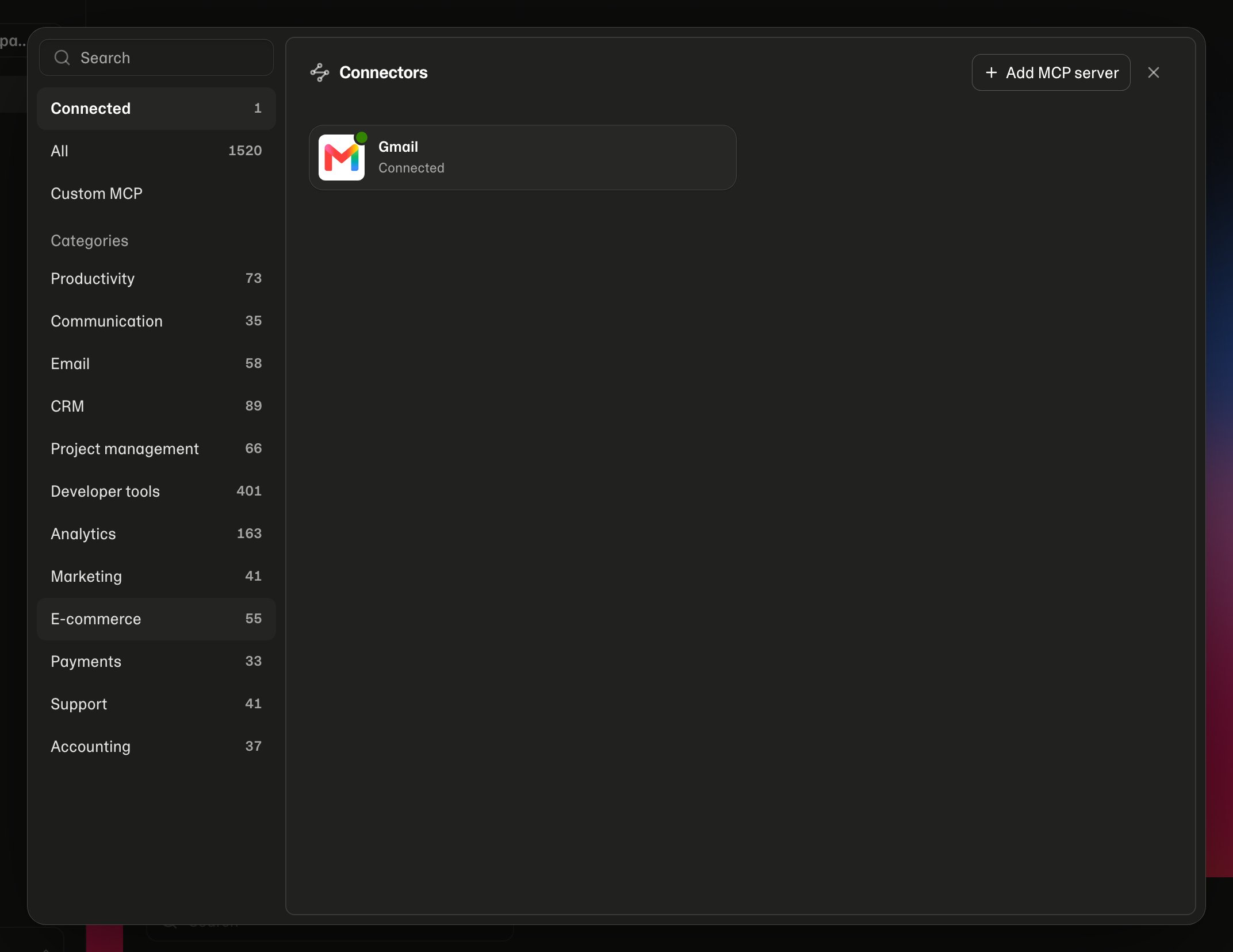
Custom MCP servers
Not everything is in the catalogue. Connectors → Custom MCP takes any MCP server’s URL — your own, your company’s, or one a vendor gave you.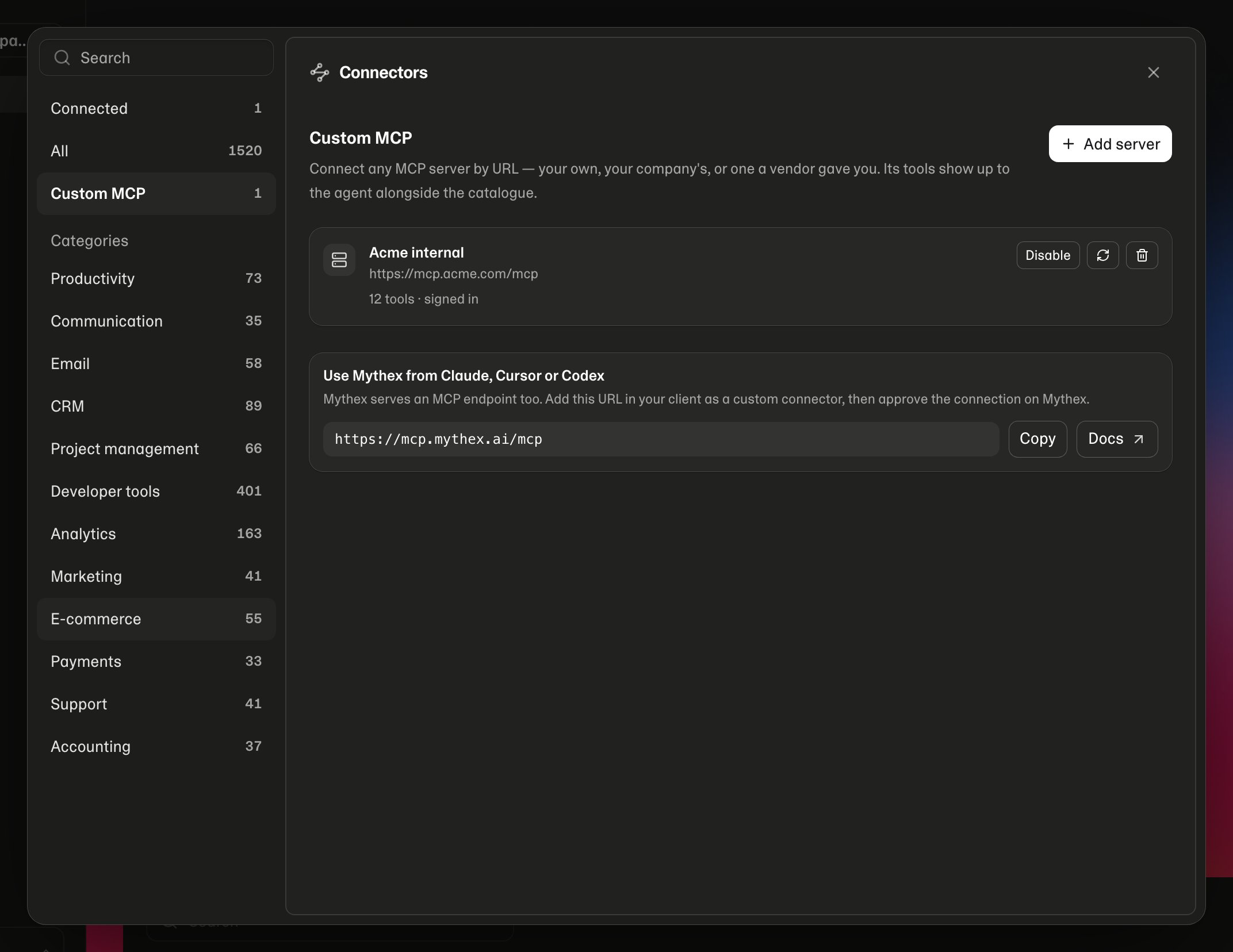
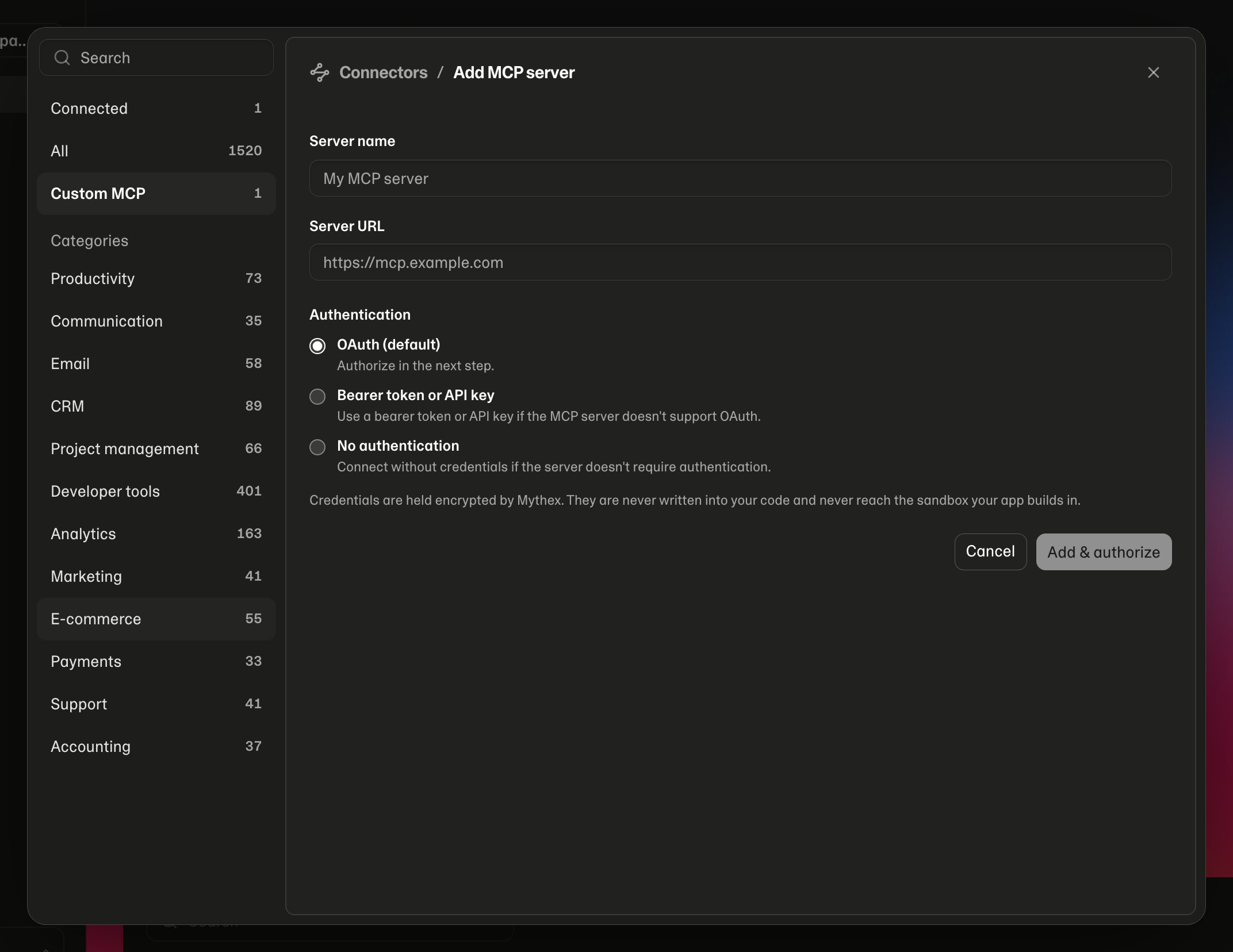
- If it asks you to sign in (most remote servers do) a tab opens on the server’s own consent screen, the way Claude and Cursor do it. Approve, and you land back in Mythex with the server connected. Nothing to register, and no token to copy.
- If it wants a static token, paste one in the Bearer token field.
- If it needs nothing, it connects straight away.
Mythex has an MCP server of its own (
https://mcp.mythex.ai/mcp) — see
MCP. You can add it here like any other, which gives the chat agent your
projects, deployments and domains as tools.Where credentials live
- Held by Mythex’s connection service, encrypted at rest — a custom MCP server’s bearer token the same way
- Never written into your project, your
.env, or generated code - Never sent to the sandbox your app builds in — the sandbox asks the server to make the call and gets the result back
- Removed when you disconnect, or when you delete your account
Limits
- Connections belong to you, and are shared across all your projects
- Connecting requires the provider to support it — a few apps in the catalogue are listed but not yet connectable, and show as unavailable
- Rate limits apply to how often the agent can call a connected app, to protect the quota on your own provider account
Troubleshooting
“That connection is not linked to this project.” The connection was removed, or belongs to another account. Reopen Connectors and check the Connected tab. The agent says an app needs reconnecting. The provider revoked or expired the grant — common after a password change, or when an admin changes workspace permissions. Disconnect and connect again.ACCESS_TOKEN_SCOPE_INSUFFICIENT
The account was linked without enough access. Disconnect, connect again, and approve
every scope the provider asks for.
Connectors says it isn’t enabled.
Self-hosted Mythex needs COMPOSIO_API_KEY set on the server. On mythex.ai it is always
on.