

Android & Google Play
Without a Google Play account
Ask the agent to build for Android. When the card says Ready to upload, click Download.
Connect Google Play
Connected, every Android build also goes to your app’s internal testing track by itself, and the agent can manage your Play listing. You use your own Google service account, so Mythex can only reach the apps you give it.1
Create the app in Play Console (once)
In Play Console, Create app. Google doesn’t let anything outside Play Console create apps. The agent tells you the name to use; the first build sets its package name.
2
Create a service account and its key
In Google Cloud, pick or create a project → Create service account (any name; no Cloud roles needed) → open it → Keys → Add key → Create new key → JSON. A
.json file downloads.3
Invite it in Play Console
Play Console → Users and permissions → Invite new users → paste the service account’s email (it ends in
iam.gserviceaccount.com) → App permissions → Add app → your app → grant Admin, or at least: release to production, release to testing tracks, manage testing tracks, manage store presence → Invite user.4
Connect it in Mythex
Drop the 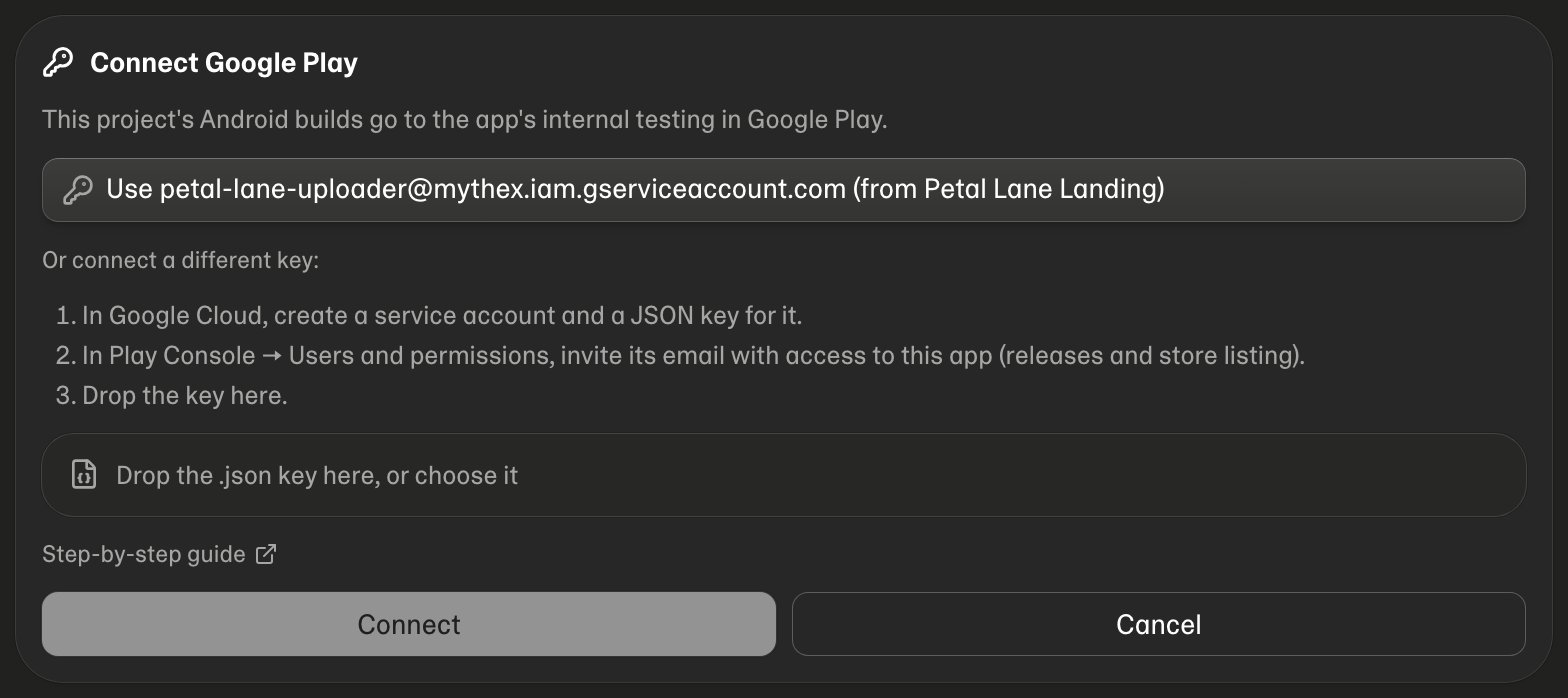
.json file in the Connect Google Play panel the agent shows (or Project settings → Mobile app → Google Play account → Connect). Mythex checks the key can manage your app before saving it. A key you connected to another of your projects is offered at the top.